SMART conduct
Let's see how to use SMART conduct...
Sometimes you need to submit referrals. You can start a referral from the tablet to complete after your route is finished.
SMART conduct, available by subscription, provides a comprehensive referral system that tracks referrals and sends notifications to designated transportation staff, campus staff, drivers, and parents.
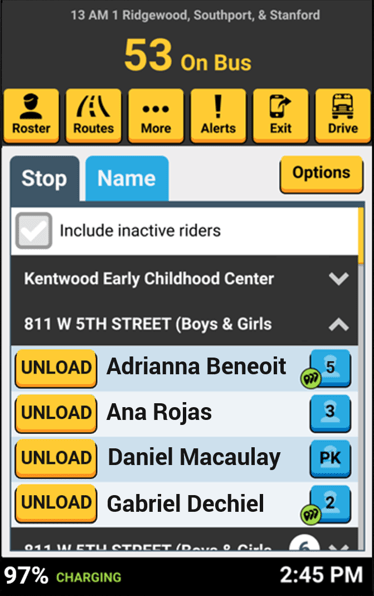
Drivers can start a quick student referral by tapping the blue student profile button, then complete it after the route ends.
creating a quick referral during your route...
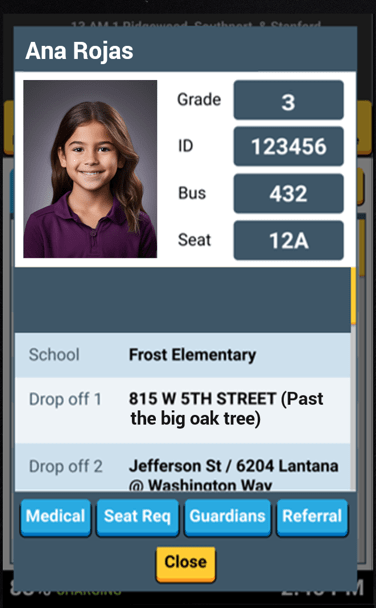
On the student's profile page, tap the blue referral button.
creating a quick referral during your route...
Tap the referral type that fits the situation. After selecting one of the three, tap the green "Create Referral" button, and continue on with your route.
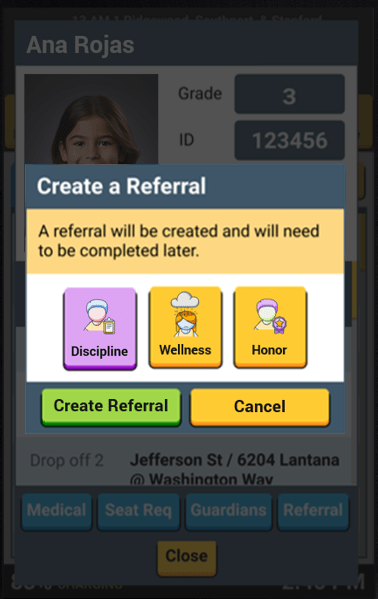
creating a quick referral during your route...
quick Referral is created
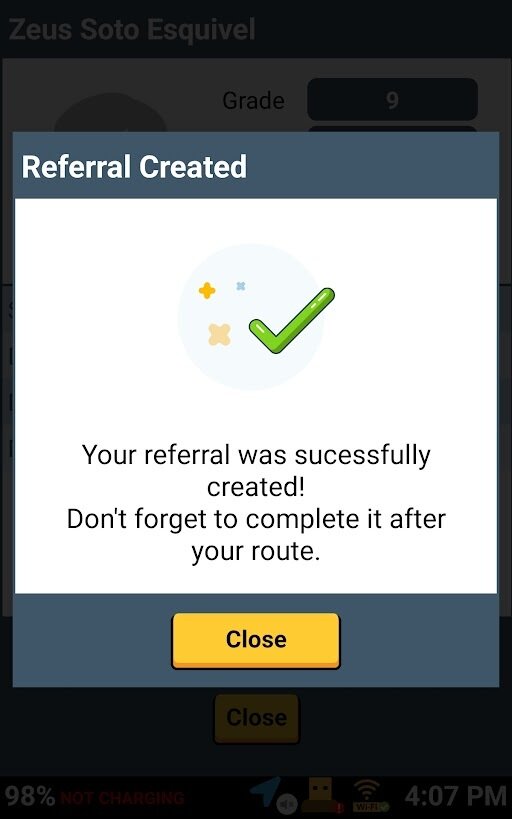
Congratulations, you just created a quick referral!
Quick referrals are incomplete. Please don't forget to complete the referral with the rest of the details when your route is finished.
When your route is finished, you can complete your referral on the tablet or on your web portal.
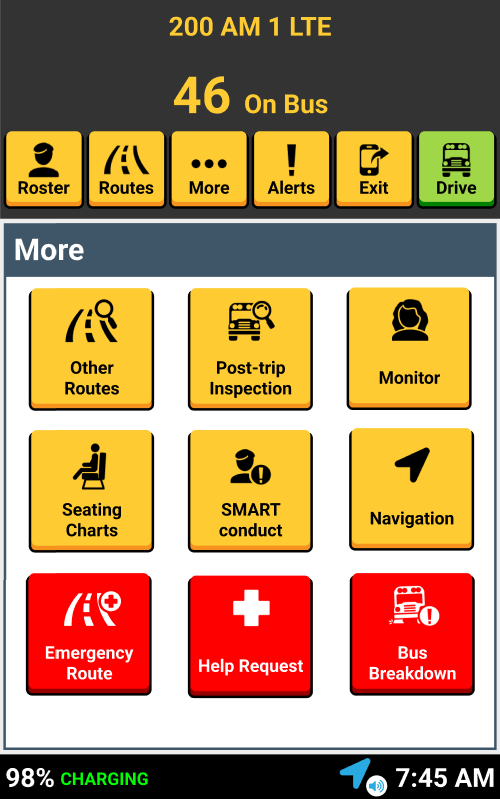
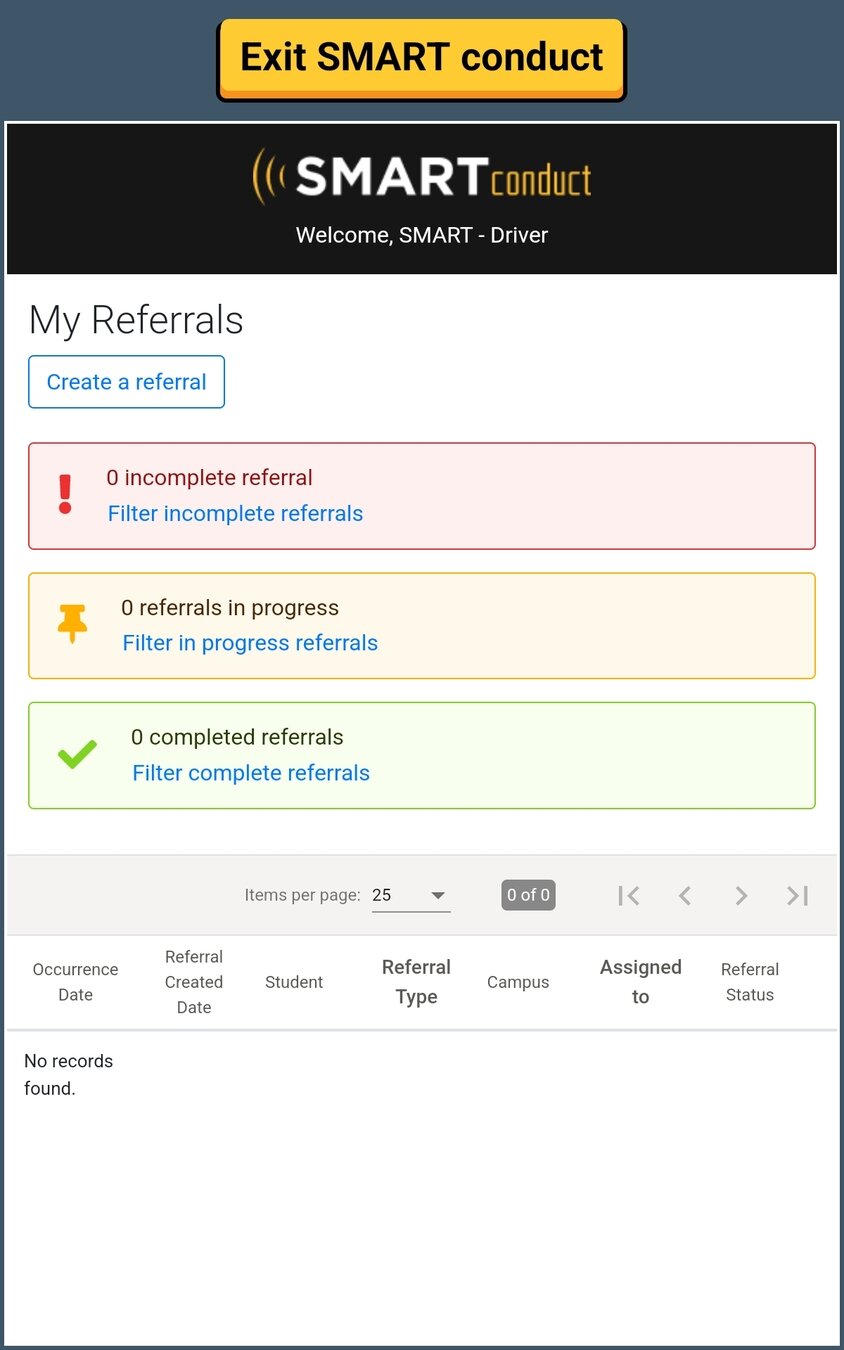
To complete on your tablet, tap the "More" button, then "SMART conduct", and complete your referral.
COMPLETE YOUR referraL AFTER THE ROUTE
Referral Types:
To create a referral, tap on the SMART conduct tile on the Welcome screen, then tap the "Create a referral" button.
1. Discipline
2. Wellness
3. Honor
Creating a referral while not on route
4. Incidents
Tap "Create an Incident Report" to submit a referral for situations that may include a group of students (such as group fights) or other incidents that do not fall under the categories of discipline, wellness, and honor. Other examples include accidents, campus issues, damage to property, medical emergencies, and wildlife incidents.
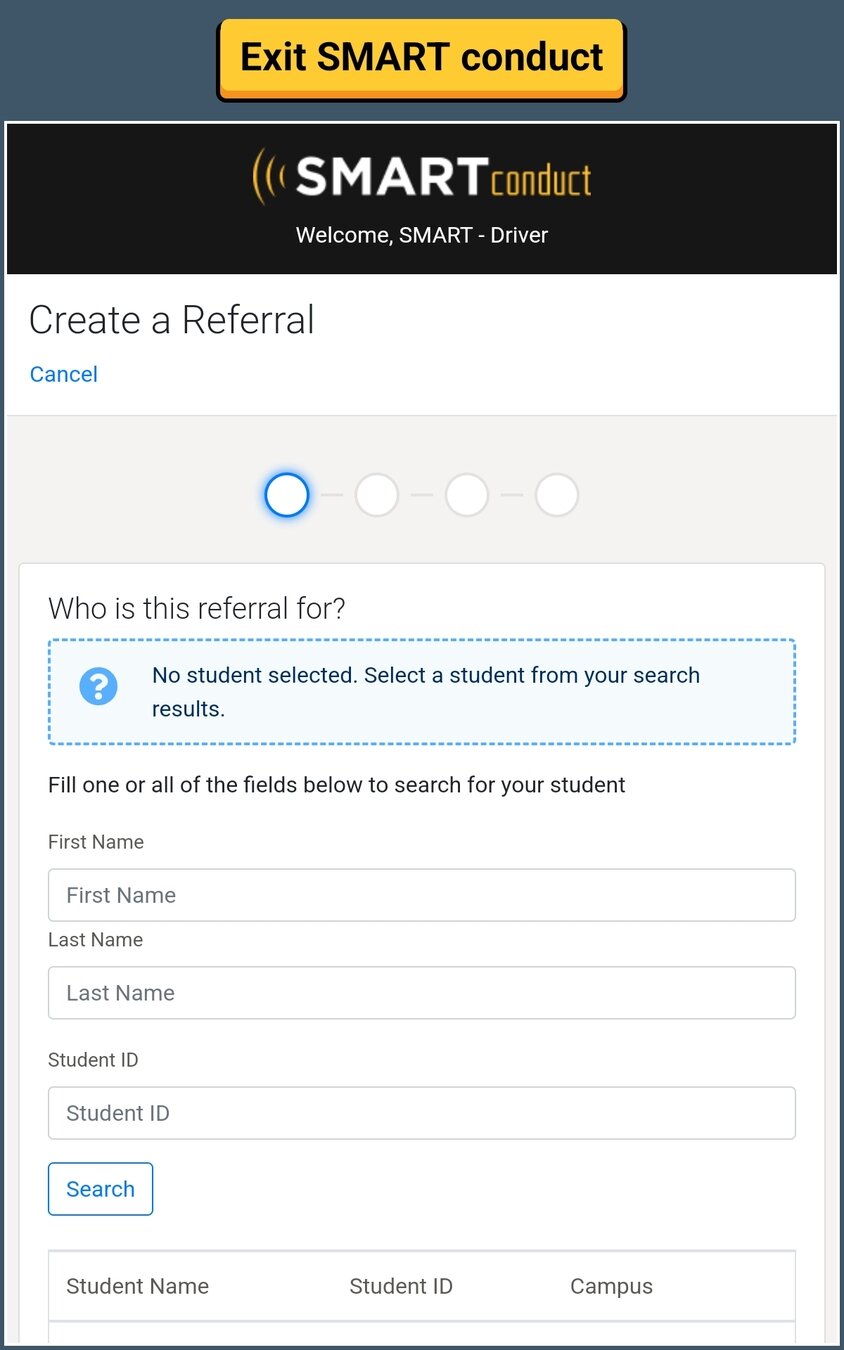
It's easy to find the student's name in the search field.
To select a student, type your search terms:
(First Name, Last Name, or Student ID) and click "Search".

SEARCHING FOR A STUDENT
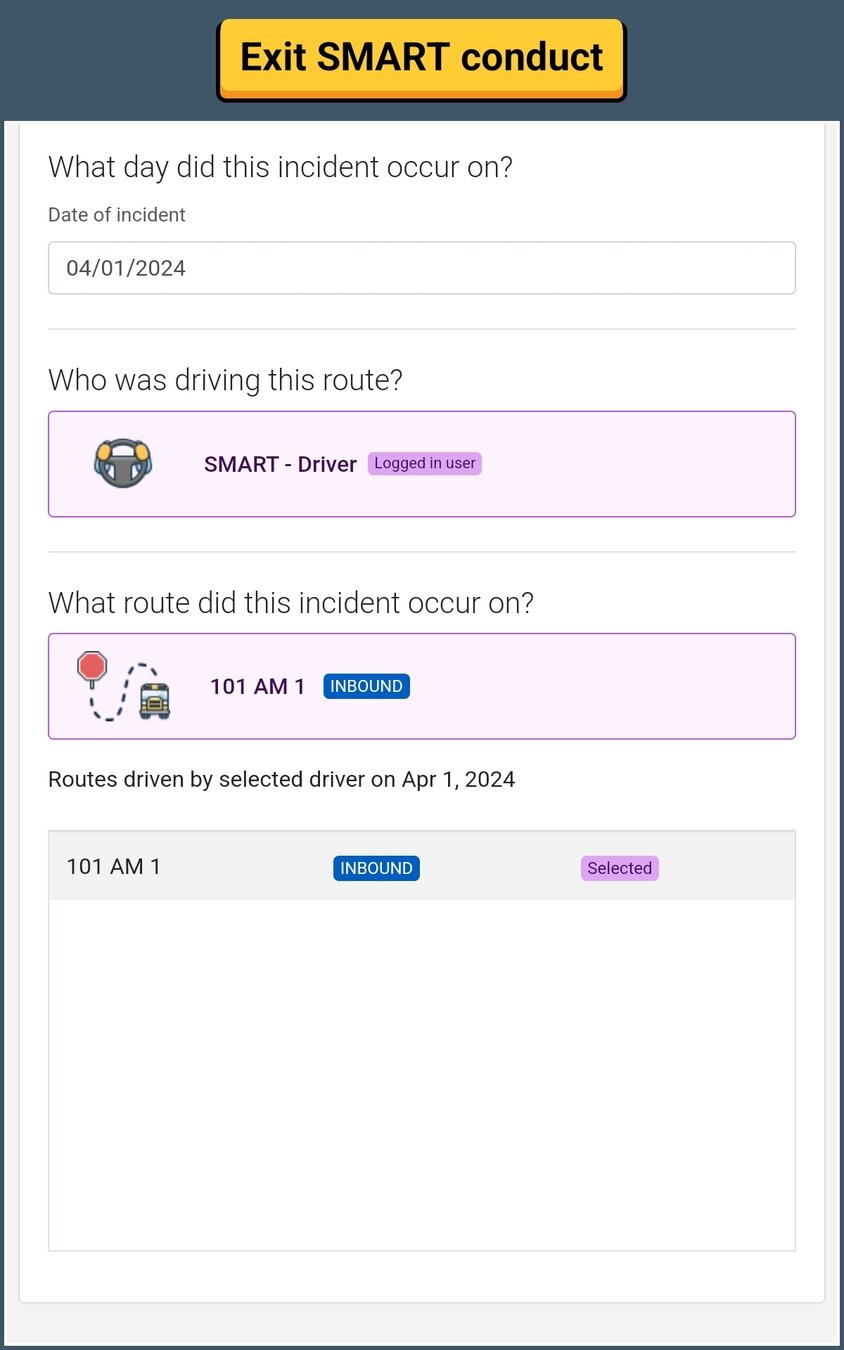
To create a referral, ensure you have the following information:
- Student name
- Driver name
- Date of incident
- Name of route/tier that incident occurred on
- Incident data
.
Pertinent information
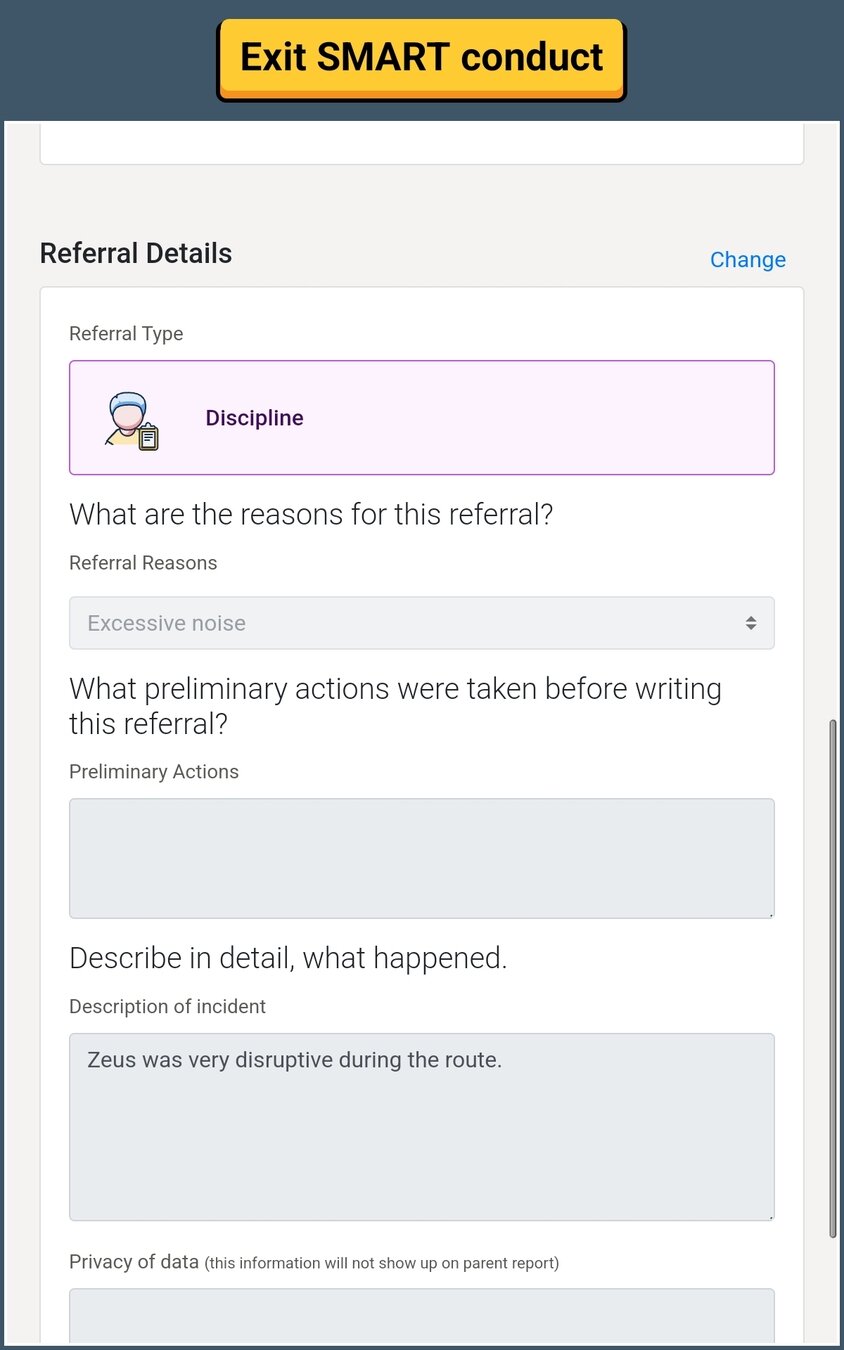
Remember to include:
Reasons
Preliminary Actions
Details of what happened
Privacy data
Referral type
Review the information before submitting.
You will be automatically informed of follow-up actions.
.
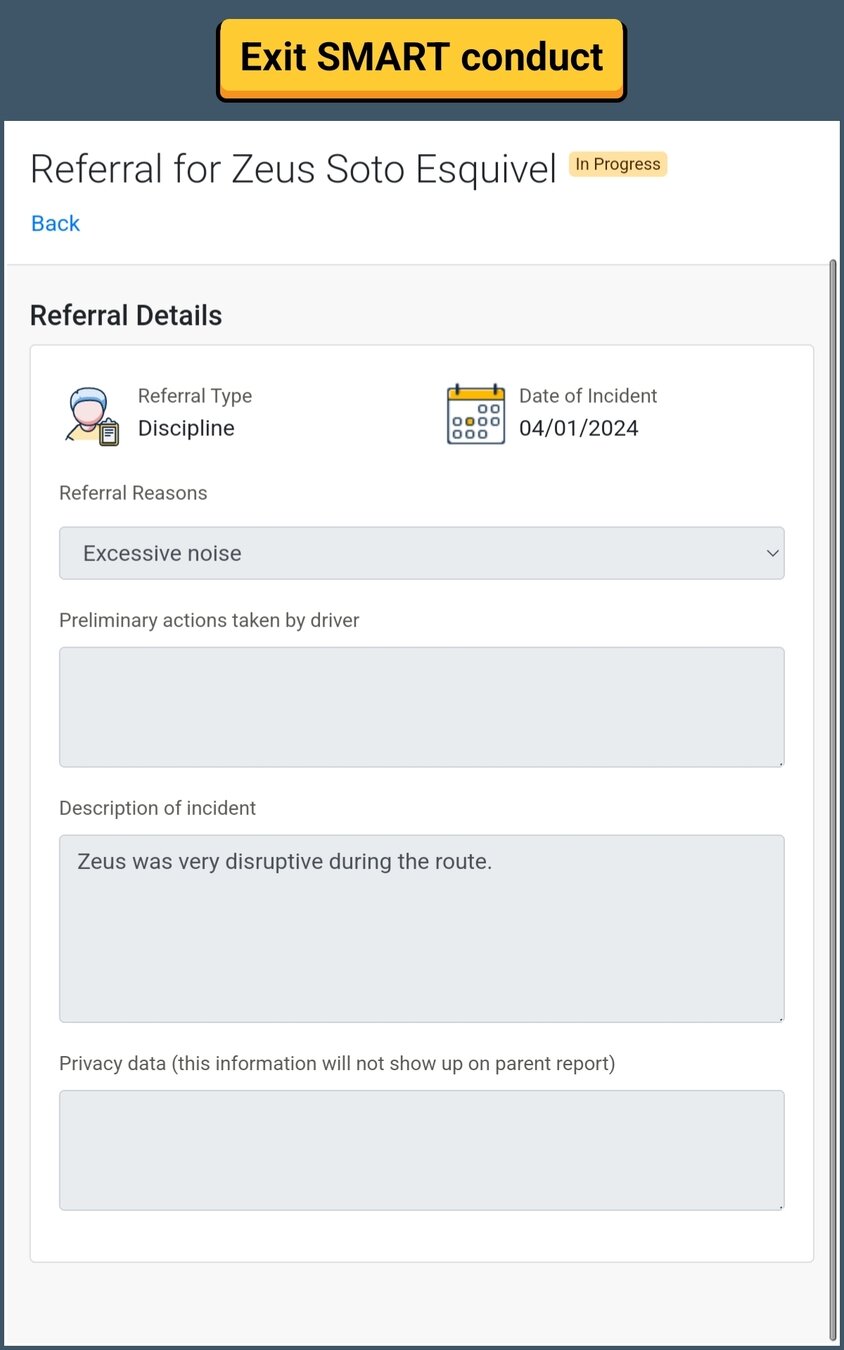
review and submit
When the referral is complete, you can easily see the student's referral history and your submission history.
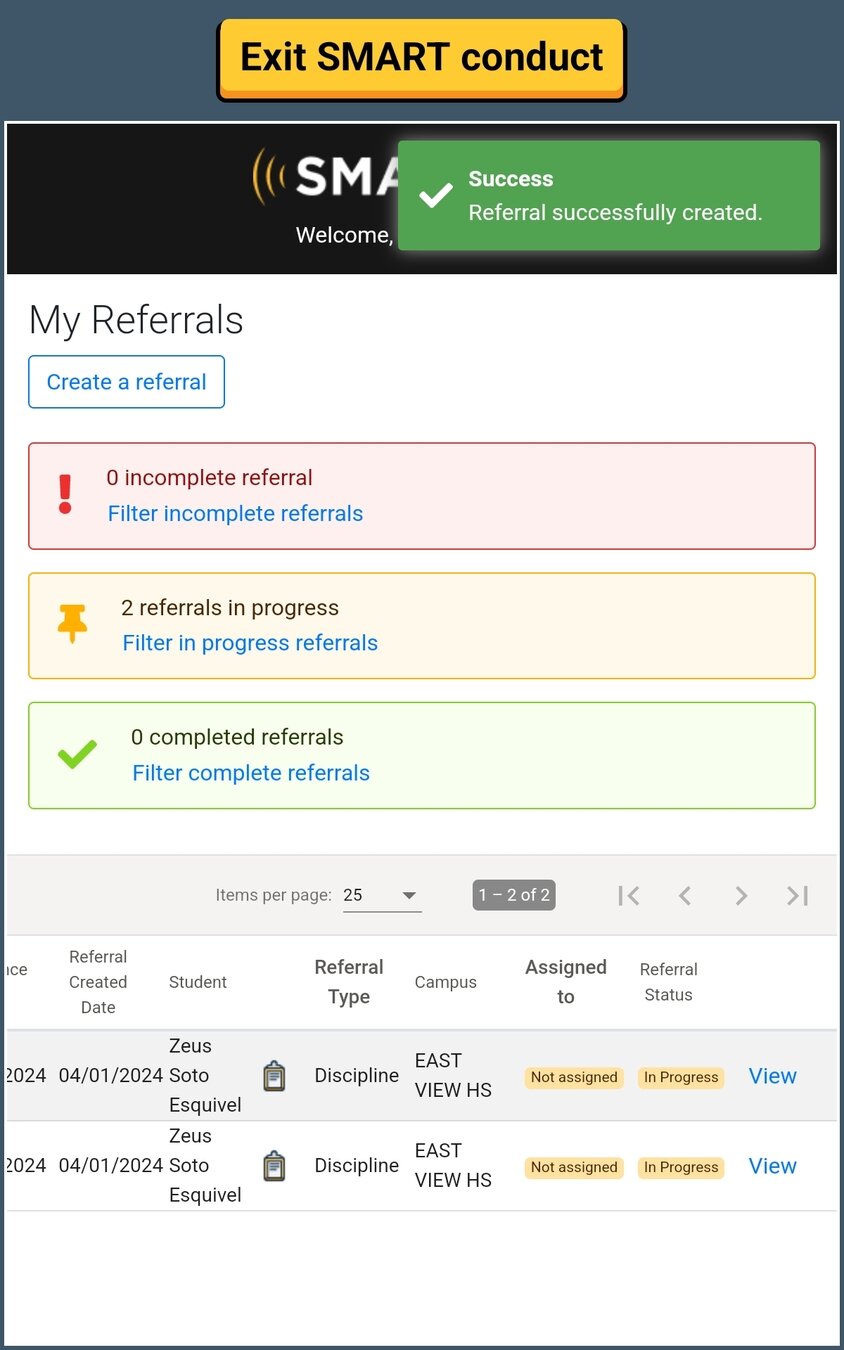
Referral history

That's it!
Head back to the tutorials page to learn more about the Driver App.