EXIT SCREEN
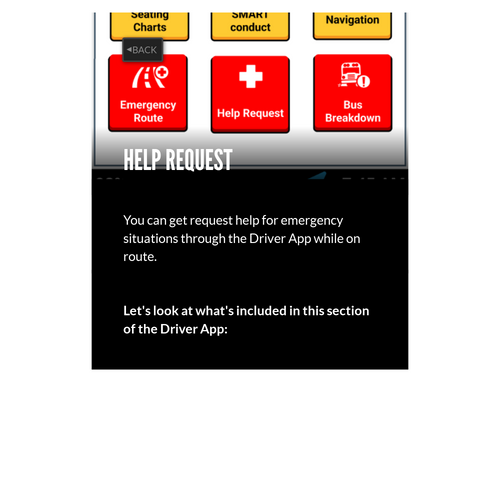
The Exit Screen on your Driver Tablet allows you to change pertinent information such as your starting mileage, bus number, and more...
Let's look at what's included in this section of the driver app:

Where is the Exit button?
Tap on the yellow "Exit" button to exit.
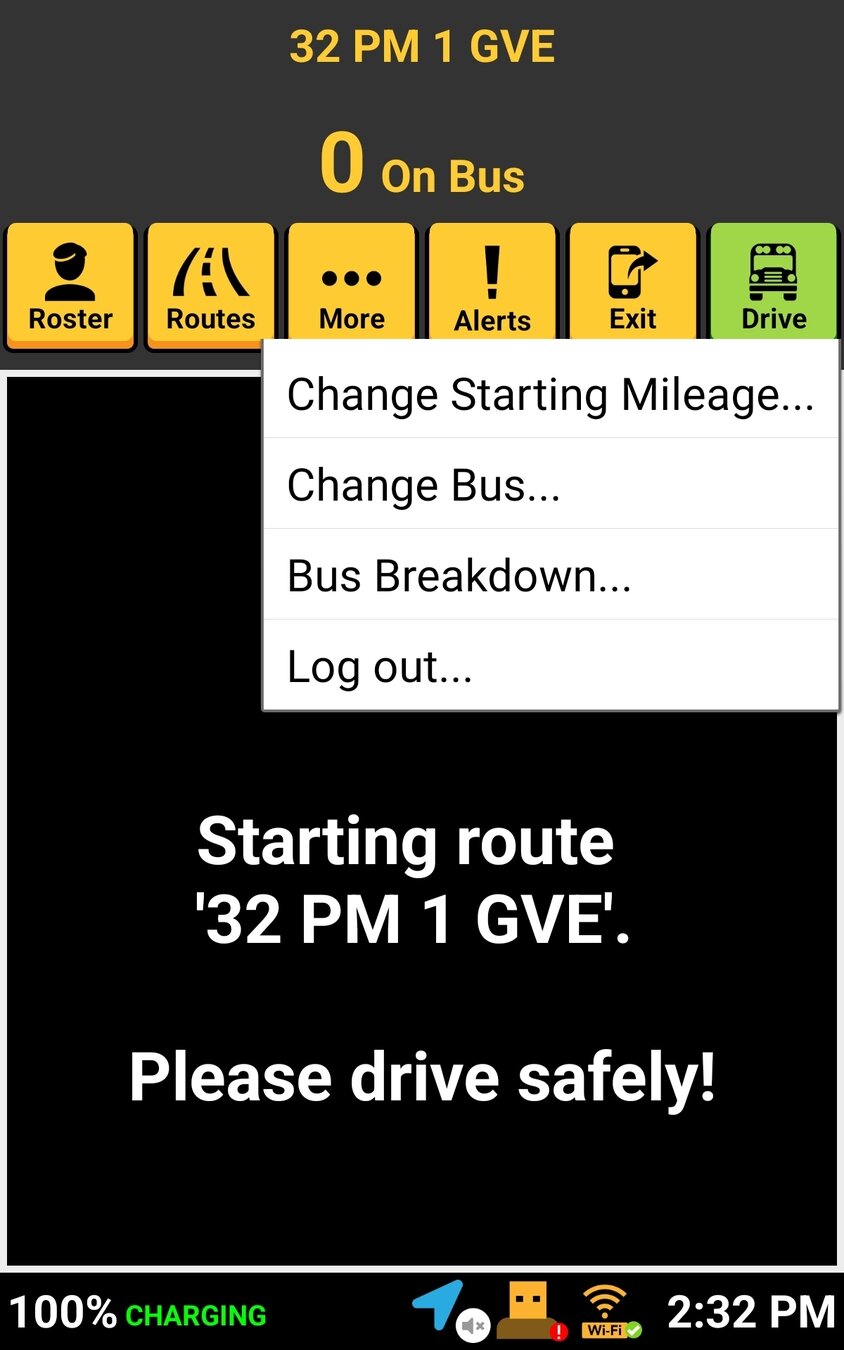
If you have not driven or picked up a student, tapping the Exit button allows you to:
- Change Starting Mileage
- Change Bus
- Bus Breakdown
- Log out
Once you've started driving your route or picked up a student, the Exit button options change to:
- Bus Breakdown
- Start Post-Trip Inspection
- Log out

That's it!
Head back to the tutorials page to learn more about the Driver App
3.4 Exit Screen - Learning the Driver App
By SMART tag™